


Simply Draw: Learn to Draw
4.74.22K Reviews
App Specs
- Version
- 1.14.1
- Updated On
- License
- Free
- Downloads
- 10,000,000+
- Developer
- Simply Ltd
- Categories
- Education
- Platform
- Android, iOS
Screenshots

 Analysis by AppCompare
When I want to draw but don’t know what to put on the page, a guided lesson can be more useful than a blank canvas. That is the appeal of Simply Draw: Learn to Draw: it gives beginners a place to start, while still leaving room to practise at their own pace. I see it as a learning companion first and a general-purpose art studio second, which is an important distinction if you are choosing between drawing apps.
A learning app with a clear purpose
Simply Ltd’s education app is free to install and is rated for Everyone, so it can suit a family looking for a gentle creative activity as well as an adult who wants to pick up a pencil or stylus after a long break. It has an average rating of 4.8 from around 16,000 ratings, and more than 500,000 installs. Those figures suggest broad interest, but they do not tell me whether its teaching style will click for every learner; the best test is whether you enjoy following one small drawing task at a time.
The current version is 1.4.2, and the app was released on October 30, 2025. That gives the product a relatively recent starting point, not a long history of established changes to judge. I would treat the version number as a snapshot of its current state rather than evidence of a particular improvement. For someone already using it, the practical question is whether the lessons and drawing experience suit their routine today; for a new user, it is sensible to begin with a short session and see whether the step-by-step approach feels motivating.
What guided lessons do well
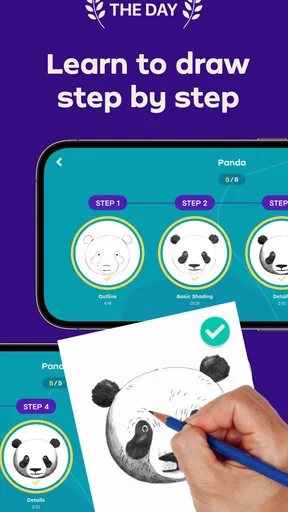
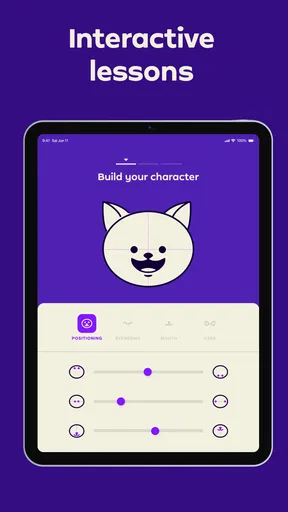
The strongest reason to choose this app is its lesson-led approach. When you are new to drawing, “practise more” is not very actionable. A sequence of manageable steps gives your attention somewhere to go: observe the next shape, make a mark, compare it with the example, then continue. That can make starting less intimidating than opening a blank canvas in a freeform drawing app.
I’d use that structure for a quick evening exercise, a quiet break between tasks, or a low-pressure activity with a child. A useful habit is to repeat a lesson rather than rush through many of them. On the second attempt, you can focus on proportions or steadier lines instead of trying to understand every instruction at once. If a step feels awkward, pausing to look at the overall shape before adding detail is often more helpful than pressing on quickly.
The trade-off is that guided practice is not the same as a full art course. Lessons can help you get moving, but learners who want extended explanations of perspective, anatomy, composition, or their own individual mistakes may eventually want a book, a teacher, or a more specialised course. I would think of Simply Draw as a friendly way to build the habit and gain confidence, not as a promise of rapid mastery.
How it fits beside other drawing tools
Compared with a blank-canvas art app, a lesson-based tool answers the immediate question, “What should I draw next?” That is a real advantage for a beginner who gets stuck before making the first mark. A traditional sketchbook has a different strength: it is always ready, encourages drawing without screen distractions, and makes it easy to keep a visible record of progress. I would choose the app when I want direction and a paper sketchbook when I want a slower, more open-ended session.
Worth Reading Before You Choose

Baby Panda World Brings Quick Play to Modern Phones, but Its Game Library Feels Busy

ESPN’s Live Game View Makes Following Close Games Easier

QuizzLand Review: A Good Fit for Short Trivia Breaks, Not Every Player

Basketball Stars: Multiplayer Is Fast, but Can It Recover When Matches Go Wrong?

WEBTOON Turns Phone Updates Into a Better Reading Routine

Link to Windows Runs on Shared Habits, Not Social Feeds
It is also worth separating learning from finished-art production. If your main goal is to build a polished illustration with a highly customised digital workflow, a dedicated drawing program may be a better fit. If you want approachable prompts and a guided route into drawing, Simply Draw makes more sense. You can even use both: follow a lesson for the basic shapes, then try the same subject again on paper or in your preferred art tool without looking at the guide.
Making practice fit real life
For a realistic routine, I would keep the goal small. After dinner, for example, set aside a few minutes to work through one lesson rather than waiting for a free afternoon. Stop when your attention fades, and return to the same subject another day if you want to improve it. That approach keeps practice manageable and makes it easier to notice what is changing in your drawing, instead of judging yourself against a finished image.
Parents can also treat a lesson as a shared activity: take turns drawing a step, then compare the different results without deciding that one is “wrong.” The Everyone content rating makes the app broadly suitable by age classification, but an adult should still decide whether the device, lesson pace, and any optional spending are appropriate for a particular child. The app is free, with in-app purchases ranging from $14.99 to $89.99 per item, so I would check the purchase screen carefully before handing over a device or beginning a family session.
Where I’d be cautious
The main limitation is also the app’s defining choice: step-by-step guidance can feel restrictive once you already know what you want to draw. If you prefer experimenting freely, the lesson format may interrupt your flow. And if your goal is feedback on your own work, a sequence of instructions cannot replace another person pointing out what is working and what could be adjusted.
There is a practical device consideration, too: the current minimum operating-system requirement is version 11. Before planning to use it on an older phone or tablet, check that the device meets that requirement. I would also avoid assuming that every useful part of the experience is included at no cost simply because installation is free; the in-app purchase range makes it worth understanding what you can access before committing to a longer learning routine.
Getting Started with Simply Draw
First things first, downloading and setting up Simply Draw: Learn to Draw was a breeze. Available on both Android and iOS, it’s super easy to find in your app store. Once installed, you’re greeted with a friendly interface that’s as inviting as a blank canvas ready for your masterpiece.
Interface and Usability
The app’s design is minimalistic, which I personally love. No clutter, no unnecessary buttons—just a clean workspace with all the tools you need neatly arranged. Whether you’re a drawing novice or a seasoned artist, navigating through the app is as smooth as a well-oiled paintbrush gliding across paper.
One of the first things I noticed was how intuitive everything felt. From selecting your brush size to choosing colors, it’s all just a tap away. And let me tell you, the variety of brushes and colors available is impressive! You’ve got everything from pencils to watercolor brushes, and the color palette is as vibrant as a rainbow on a sunny day.
Features That Stand Out
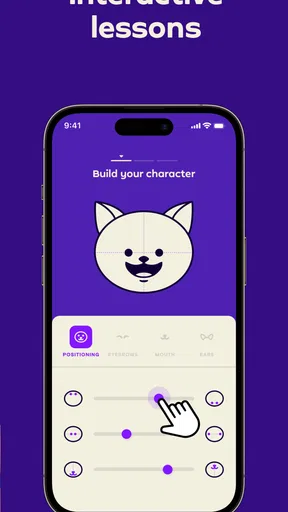
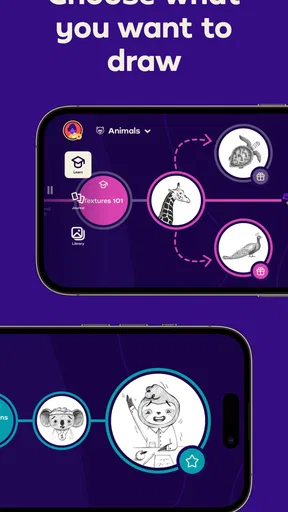
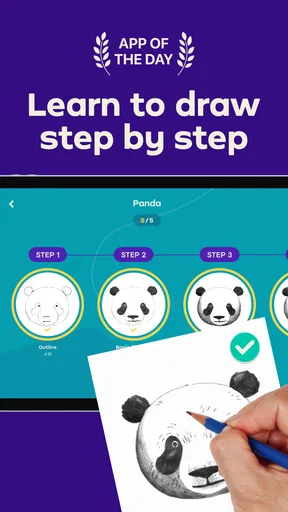
What really sets Simply Draw apart is its step-by-step tutorials. They’re perfect for anyone looking to improve their drawing skills or learn new techniques. The tutorials are easy to follow and cover a wide range of subjects, from simple shapes to more complex illustrations.
"The tutorials are like having a mini art teacher in your pocket."
Another cool feature is the layer functionality. If you’re used to digital drawing, you know how crucial layers can be. They allow you to experiment without the fear of ruining your entire artwork—a true lifesaver!
The Joy of Creating
Now, let’s talk about the actual drawing experience. Using Simply Draw feels incredibly natural. The app is responsive, and the strokes are smooth and precise. I spent hours just doodling away, trying out different techniques, and I didn’t experience any lag or crashes, which is always a plus.
One of my favorite things to do was to try out the different brushes and create textures. The watercolor brush, in particular, was a lot of fun. It mimics real-life watercolor effects beautifully, and the results are just stunning.
Sharing Your Artwork
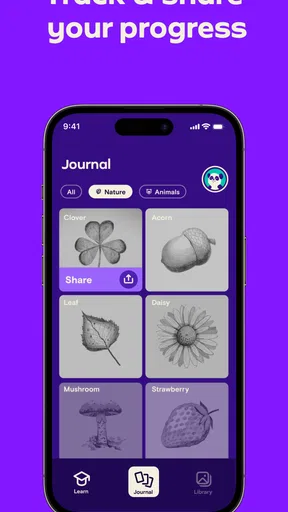
Once you’re done creating your masterpiece, sharing it with the world is just a tap away. The app makes it easy to share your work on social media or save it to your device. It’s a great way to showcase your skills or even get feedback from fellow artists.
Final Thoughts
All in all, Simply Draw: Learn to Draw is a fantastic app for both budding artists and seasoned pros. It’s user-friendly, packed with features, and most importantly, it makes drawing fun and accessible. Whether you’re looking to hone your skills or just unwind with a bit of creative expression, this app has got you covered.
So go ahead, give it a try, and see where your creativity takes you. Happy drawing!
Pros
- User-friendly interface for beginners.
- Wide variety of drawing tutorials.
- Includes step-by-step guides.
- Offline mode available for practice.
- Supports multiple drawing tools.
Cons
- Limited features in free version.
- Occasional ads disrupt workflow.
- No advanced tutorials for experts.
- In-app purchases can be costly.
- Requires frequent updates.
FAQs for Simply Draw: Learn to Draw
What platforms is Simply Draw: Learn to Draw available on?
Simply Draw: Learn to Draw is available for both Android and iOS platforms. Users can download it from the Google Play Store or the Apple App Store, ensuring compatibility with a wide range of devices. This flexibility allows users to enjoy the app whether they have a smartphone or tablet, making it accessible to a broad audience.
Is Simply Draw: Learn to Draw suitable for beginners?
Yes, Simply Draw: Learn to Draw is designed with beginners in mind. The app provides step-by-step tutorials that guide users through basic drawing techniques, gradually increasing in complexity. Its user-friendly interface and clear instructions make it an excellent choice for anyone looking to start their drawing journey without prior experience.
Does Simply Draw: Learn to Draw require an internet connection?
No, Simply Draw: Learn to Draw can be used offline once downloaded. This means users can access tutorials and tools without needing an internet connection, making it convenient for use on-the-go. However, an internet connection may be required for initial download and accessing any updates or additional content.
Are there any in-app purchases in Simply Draw: Learn to Draw?
Yes, while Simply Draw: Learn to Draw offers a range of free features, it also includes optional in-app purchases. These purchases may unlock premium tools, additional tutorials, or ad-free experiences. Users can enjoy the core functionalities without spending, but the extras provide enhanced learning opportunities for those interested.
What age group is Simply Draw: Learn to Draw intended for?
Simply Draw: Learn to Draw is suitable for a wide range of ages, typically suitable for children from age 6 and up, as well as adults looking to refine their drawing skills. The app's intuitive design and progressive tutorials make it accessible to younger users while still providing value to more experienced artists.


